Links and constraints
Finish-to-start, start-to-start, finish-to-finish and start-to-finish, with lags and leads in working or elapsed time. All eight constraint types, deadlines, and scheduling forward from the start or back from the finish.
 Project scheduling · macOS and Windows
Keystone is a desktop project scheduler with Microsoft Project's scope: tasks and links, calendars, the critical path, resources and leveling, baselines, tracking and earned value. What's different is how quickly you get there. Type the plan as an outline, drag on the Gantt chart, find any command with ⌘K, and try a what-if without touching the real plan.

Everything a full scheduler has, with four ways to reach it faster.
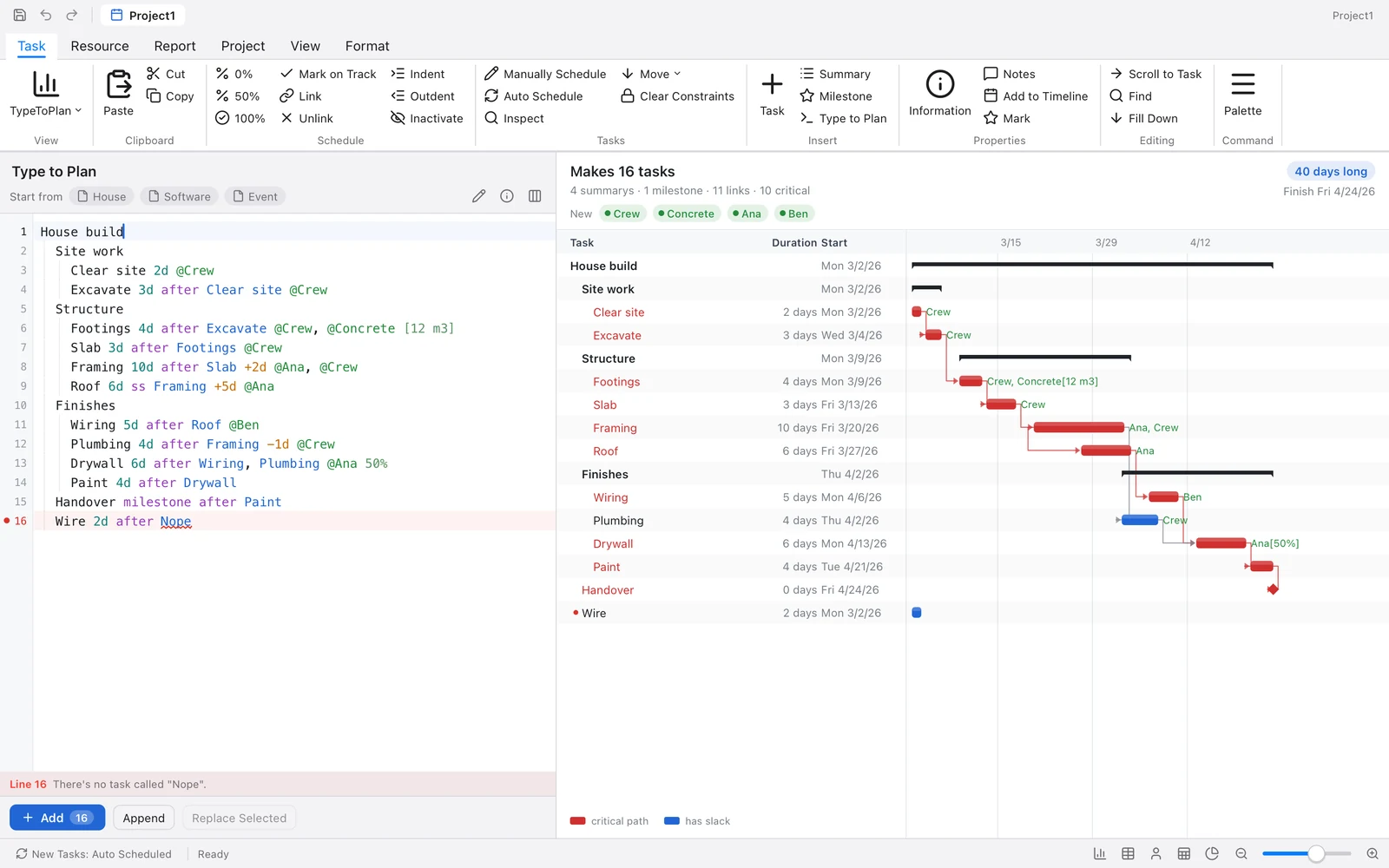
Press ⌘⇧O and type the plan as an indented outline. Pour slab 5d after Formwork becomes a five-day task that follows Formwork; @Crew 3 puts a crew of three on it.
The preview schedules it as you type, with the critical path in red, and underlines anything it can't read.
House build
  Site work
    Clear site 2d @Crew
    Excavate 3d after Clear site @Crew
  Structure
    Footings 4d after Excavate @Crew, @Concrete [12 m3]
    Slab 3d after Footings @Crew
    Framing 10d after Slab +2d @Ana, @Crew
    Roof 6d ss Framing +5d @Ana
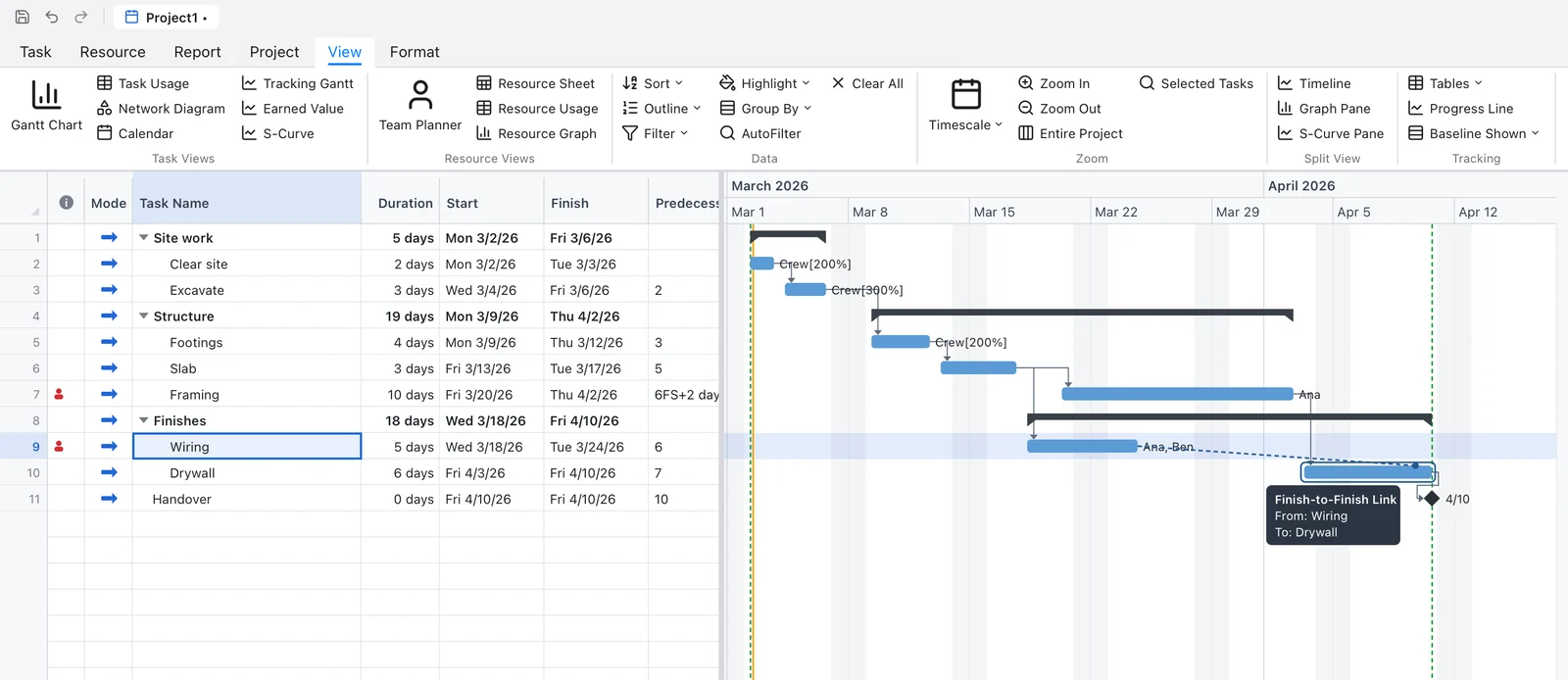
Drag a bar to move it, its end to change its length, its progress to update it, and from one bar to another to link them. The links and the critical path follow the mouse, so you see what a change does before you let go.
A tooltip names the link you're about to make, and a link Keystone won't make, such as a second link between the same two tasks, is refused while you drag.
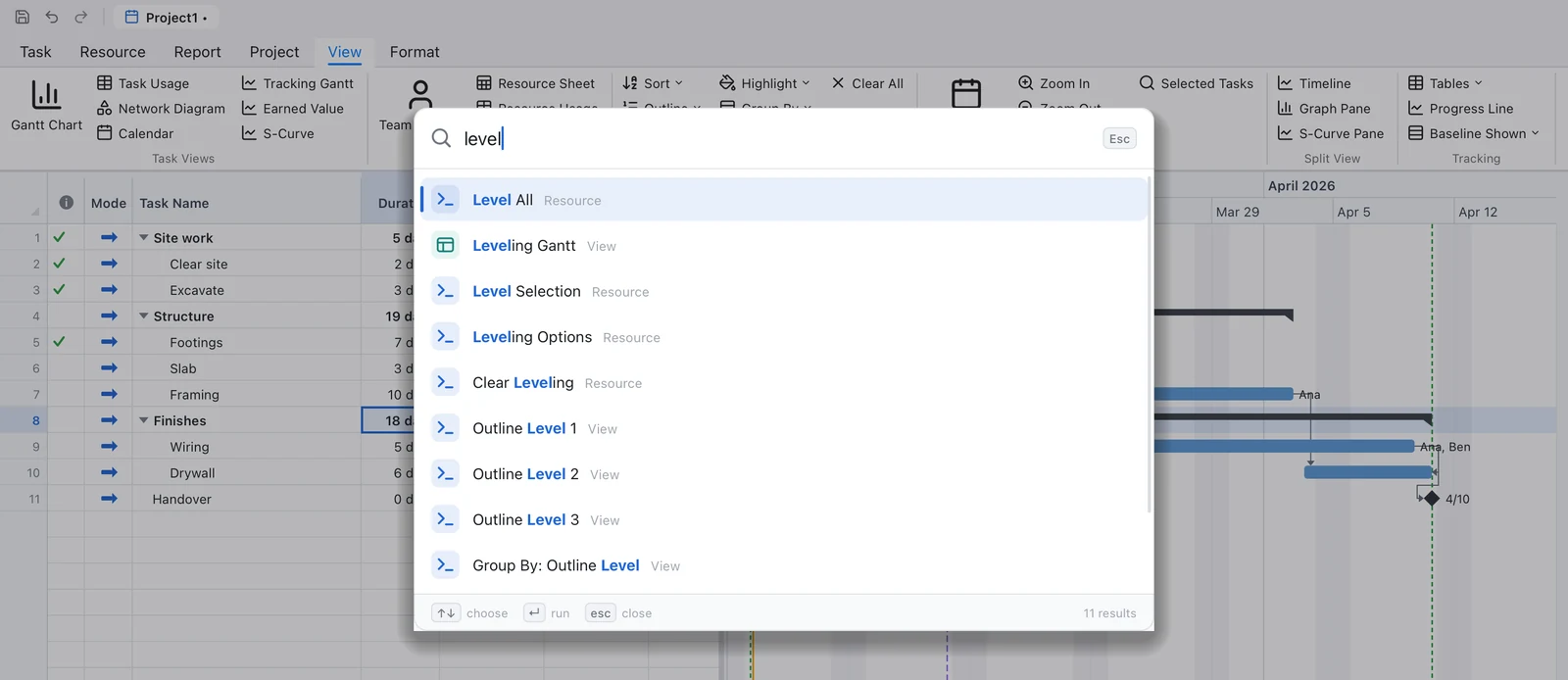
Every command, view and option, by name. Type “level” and Level All, the Leveling Gantt, Level Selection and the leveling options are all there, each with the ribbon tab it lives on. The commands you use often rise to the top.
Branch the plan, change it, and compare. Finish dates, duration, cost, work and critical tasks sit side by side, both schedules are drawn over each other, and the tasks that moved are listed with how far.
Here a second crew brings the finish in a day and saves $1,920. Switch between branches whenever you like; the main plan stays as it was.

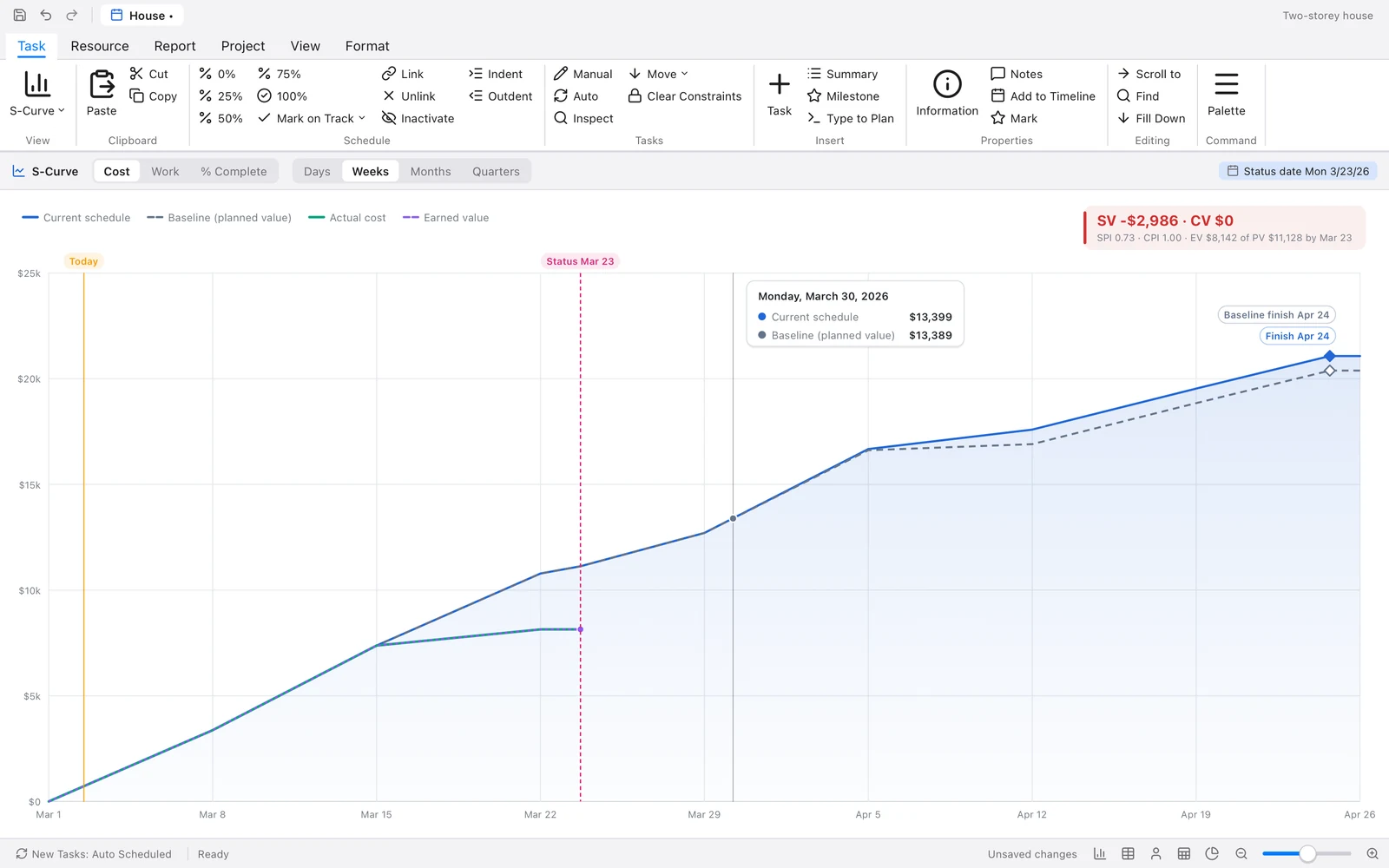
How the project is going, in one line against another: the baseline, the current schedule and what has actually happened, from the start to the finish.
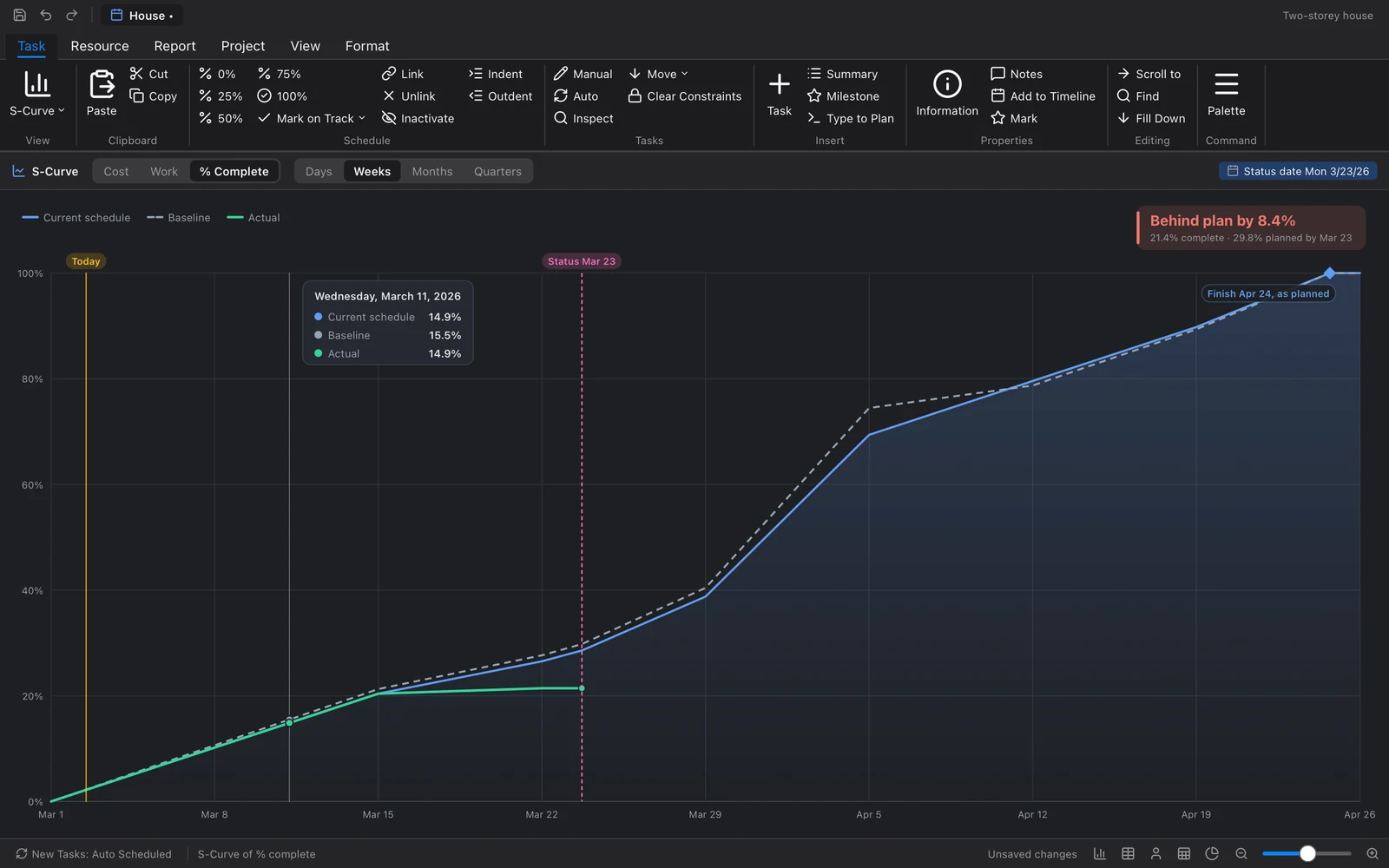
The parts of Microsoft Project people rely on, in a ribbon laid out the way they know.
Finish-to-start, start-to-start, finish-to-finish and start-to-finish, with lags and leads in working or elapsed time. All eight constraint types, deadlines, and scheduling forward from the start or back from the finish.
Project, task and resource calendars with work weeks and exceptions. Total and free slack, late dates and the critical path, kept up to date as you edit.
Work, material and cost resources with rates, availability and per-use costs; fixed units, duration or work; effort driven; work contours. Level all or the selection, with the Leveling Gantt to see what moved.
Eleven baselines, a status date, percent complete, actuals, Update Tasks, Update Project, Reschedule Unfinished Work, progress lines and variance tables.
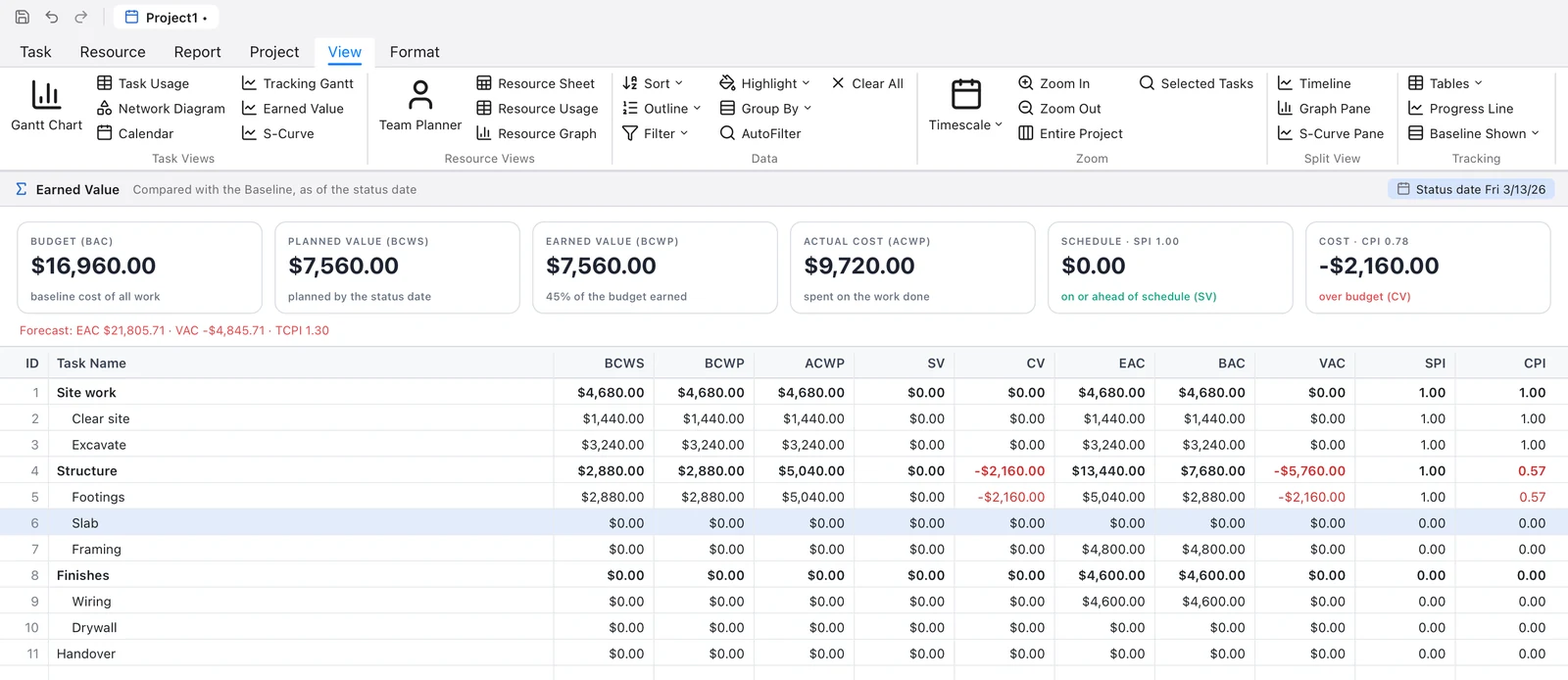
BCWS, BCWP, ACWP, SV, CV, BAC, EAC, VAC, SPI and CPI as table columns, a table of their own, and a view with the project's figures.
Select a task and it says why it starts when it does, whether it's critical, and what's wrong with it, with fixes to apply.
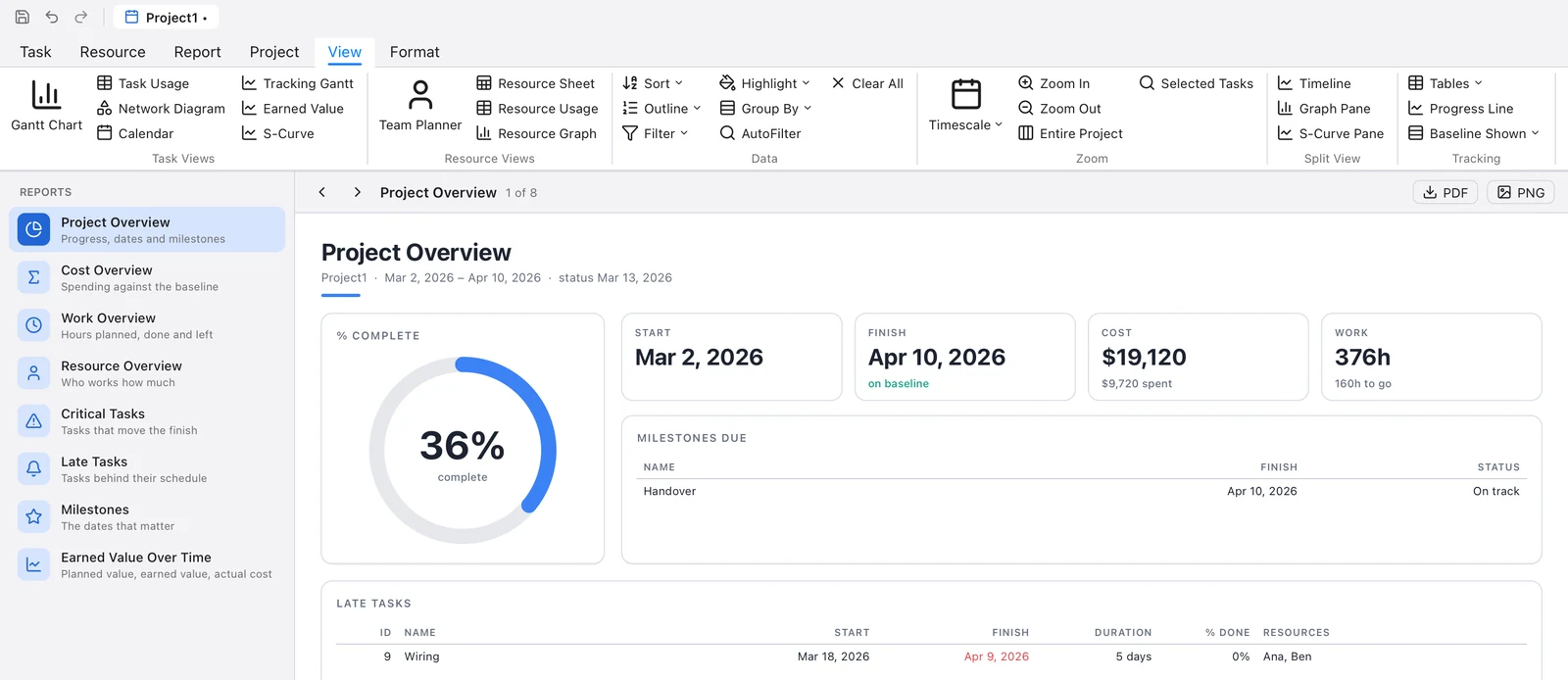
Print preview and page setup for every view, PDF and PNG export, and copy picture.
While a project has unsaved changes, a copy is kept every half minute. If Keystone stops without quitting, it reopens the copies next time and says so.
On a plan of 2,000 tasks, scheduling takes about 10 ms and an edit with its reschedule under 15 ms. Measured below.
Gantt Chart, Tracking Gantt, Leveling Gantt, Network Diagram, Calendar, Task Usage, Resource Usage, Resource Graph, Team Planner, Resource Sheet, a timeline, and eight reports. Grouping, filters, highlighting, AutoFilter and sorting throughout.
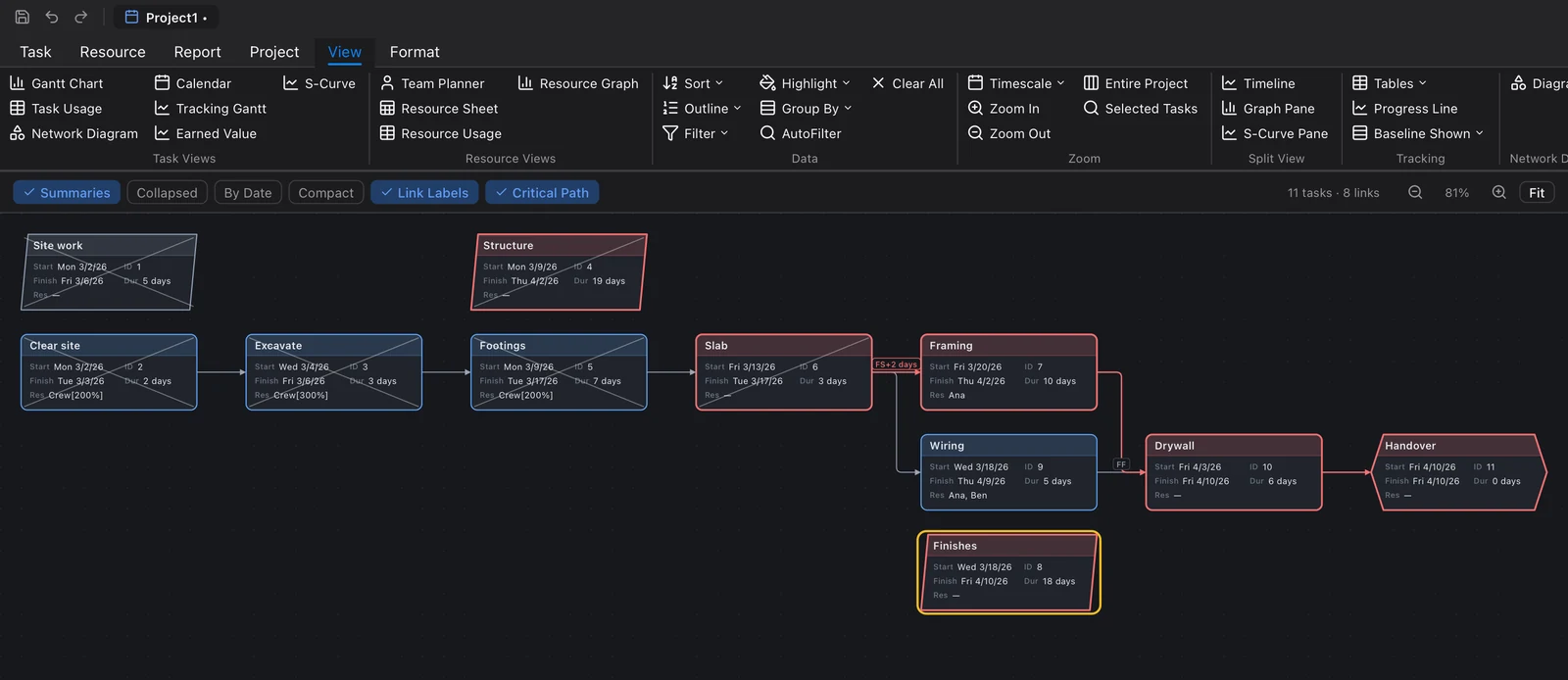
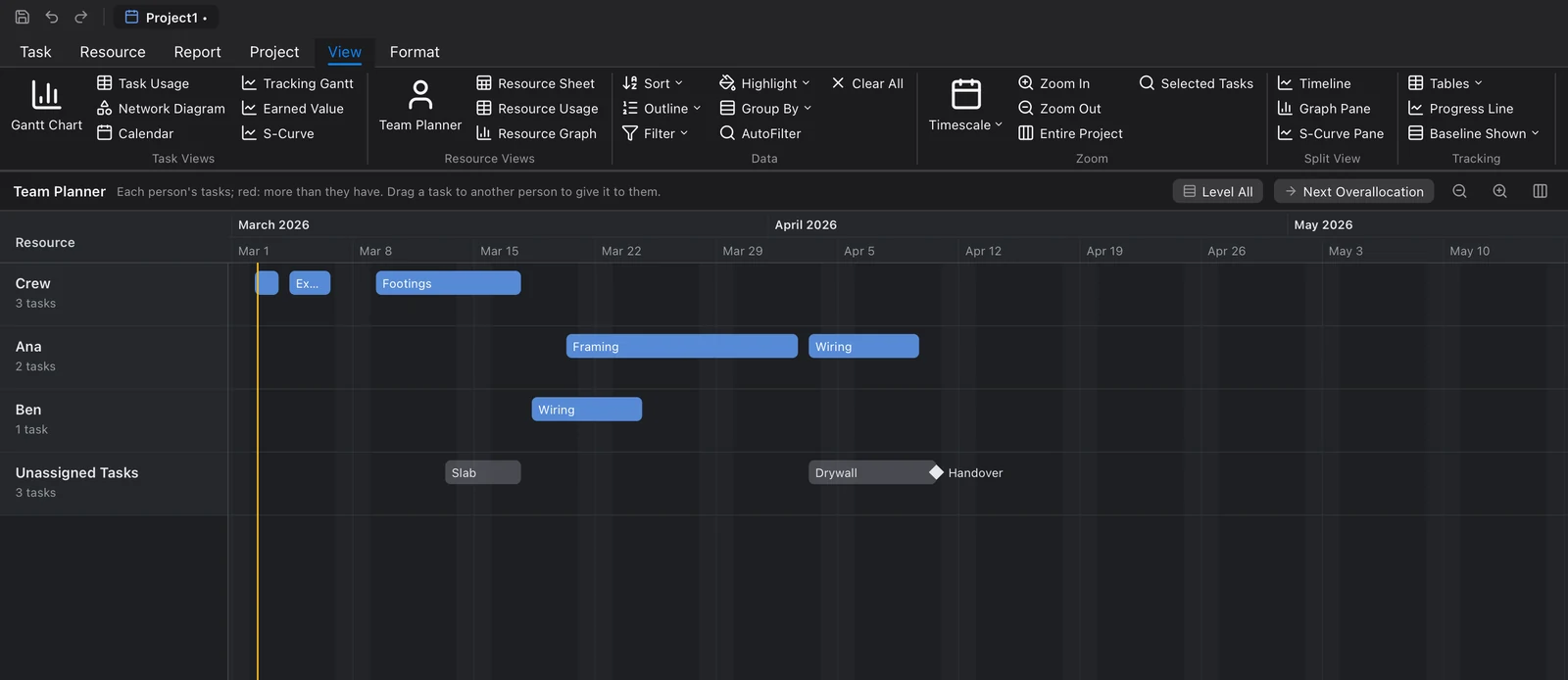
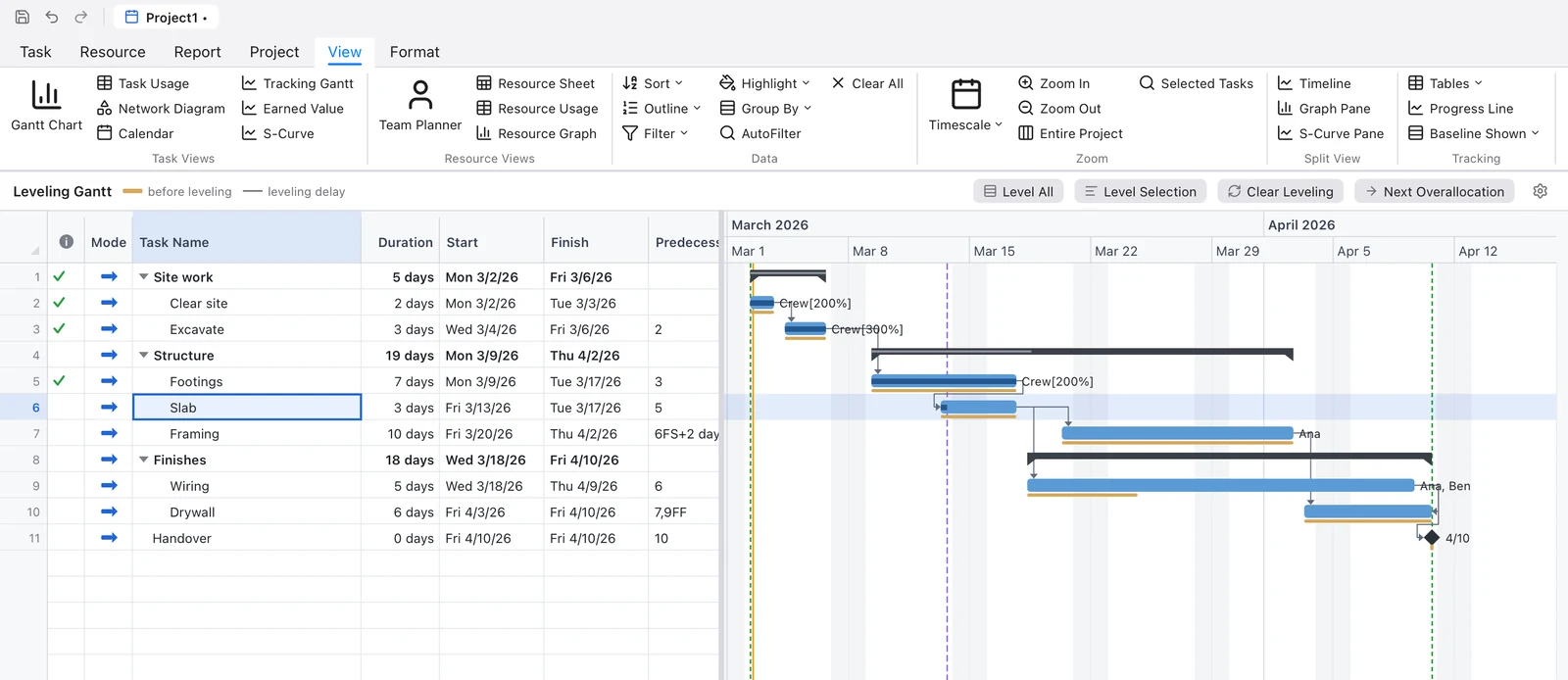
Bring a schedule from Microsoft Project or Primavera P6, and hand one back.
| Format | Read | Write | Notes |
|---|---|---|---|
Keystone .keystone | ✓ | ✓ | Everything, including view settings and scenarios. |
Microsoft Project XML (MSPDI) .xml | ✓ | ✓ | One link per pair of tasks, as Microsoft Project keeps them.Written files are checked against Microsoft's published schema. |
Primavera P6 XER .xer | ✓ | ✓ | Several projects per file; P6's link pairs (SS + FF) kept.Checked by reading the same files with MPXJ. |
Excel .xlsx | ✓ | ✓ | Tasks, Resources and Assignments sheets, and a sheet with a picture of the Gantt chart. |
| CSV | ✓ | ✓ | Microsoft Project's column names; European number and date styles. Writes the table on screen. |
| PDF and PNG | — | ✓ | Any view. |
The readers are tested on files written by Microsoft Project 2007 to 2024 and by P6, taken from public test suites. Keystone reads and writes these formats; it hasn't yet been tried against Microsoft Project or P6 themselves (see Limits).
Measured with the app's own timing test on a generated plan of 2,000 tasks.
So you know before you rely on it.
Version 0.3.0 for macOS and Windows.
Once installed, updates download in the background and install when you quit. The Mac version needs Apple silicon; the Windows installer isn't code-signed yet, so SmartScreen asks you to confirm.